
Blog
How to Set Up Local Delivery and Pickup in Shopify (With Exact Date and Time Slots)
Your customer orders on Friday assuming they can pick up Saturday, but the order isn’t ready.
Someone orders flowers for a day you don’t deliver, and you only find out after they’ve paid.
Your bakery gets 40 cake orders on Saturday when you can only bake 20.
Sound familiar?
These aren’t shipping problems. They’re scheduling problems. And Shopify’s native local delivery and pickup settings won’t fix them.
You’ll learn how to set up local delivery and pickup, and how to use Kite, a free Shopify app, to let your customers pick only the dates you can actually fulfill.
Key takeaways
- You can use Shopify to control where you deliver, but not when. There's no native way to let a customer pick a date or a time slot.
- With Kite, you can add delivery dates, time slots, prep time, cut-offs, and blackout dates on top of the setup you already have. Your zones, pricing, and locations stay exactly as they are.
- You can try it without paying. Kite's free plan covers 30 orders a month.
Set up your Shopify Locations first
Before you set up delivery or pickup, make sure your Shopify Locations are configured.
Go to Settings → Locations and open the location you want to sell from. Under Fulfillment, make sure Use inventory at this location to fulfill online orders is on.
If you have multiple locations, repeat this for each one. You manage delivery and pickup settings per location, not for your entire Shopify store.
How to Turn On Local Delivery in Shopify
Go to Settings → Shipping and delivery. Under Additional delivery methods, select Local delivery.
You set up local delivery separately for each location, with up to 10 delivery zones per location.
For each zone, you’ll configure:
- Zone name: For your reference only. Customers won’t see it.
- Where you deliver: choose either Postal codes or Delivery radius up to. You can’t use both in the same zone. A radius covers up to 160 km (100 miles), and Shopify limits a postal code list to 3,000 characters.
- Minimum order price: Optional. You can set a different minimum for each zone.
- Delivery price: Offer free delivery, charge a flat fee, or set rules based on order value or weight.
- Delivery information: Optional text shown to customers at checkout.
You can use different rules for different areas. For example, a bakery could offer free delivery within 5 km and charge a flat fee for deliveries between 5 and 15 km.
Shopify uses these settings to decide whether a customer is eligible for local delivery.
What Shopify doesn’t handle
This is where native local delivery stops. You can define where you deliver, but not when, and not how many orders you can take in a day.
There’s no native setting for a delivery date, a time slot, or a daily order cap. Here’s exactly where that line sits, further down.
One checkout limitation to know
Local delivery works with Shop Pay, but not with Apple Pay, Google Pay, Amazon Pay, or PayPal’s accelerated checkout. If a customer chooses one of those, local delivery won’t appear as a delivery method at all.
Quick check: open your store in an incognito window and test checkout with Apple Pay or Google Pay. If local delivery disappears, that’s expected Shopify behavior, not a bug.
How to Turn On Local Pickup in Shopify
Go to Settings → Shipping and delivery. Under Additional delivery methods, select Pickup in store. Pick the location you want and turn pickup on.
There are only two things to set:
- Processing time: how long you need to get an order ready.
- Pickup instructions: what your customer reads in their email. Where to park, which door, what to bring.
Short of stock at one location? Shopify can pull the item from another one to fulfill the order.
At checkout, customers see Ship and Pick up. If more than one of your locations qualifies, they choose which.
Pickup is always free, and that has a catch
You can’t charge for local pickup. The rate is set to Free and can’t be changed.
Shopify shows the cheapest rate as the default, and nothing is cheaper than free. So wherever pickup is available, it turns up already selected. Someone who isn’t looking closely checks out on pickup when they wanted it delivered.
Where pickup stops
Processing time tells a customer roughly when their order will be ready. It doesn’t let them say when they’re coming to get it.
There’s no calendar. No way to pick a day or a time. No cap on how many pickups you take in one day. Nothing stops 10 customers from all turning up for their order at the same moment on your busiest day.
So if you want customers choosing an exact pickup date and time, native pickup won’t get you there.
"The problem I had was customers placing an order on a Friday or Saturday and thinking they could pick up the next day. Shopify doesn't have any way to control the pickup dates. This app [Kite] solved that problem. Now customers are aware that they cannot pickup on the weekends or holidays."
Why Local Delivery Isn’t Showing at Checkout, and 4 Other Mistakes
You can set all of this up correctly and still have it break at checkout.
If local delivery has disappeared, the usual culprit is an accelerated checkout button: Apple Pay, Google Pay, Amazon Pay and PayPal don’t support it. After that it’s usually a zone that doesn’t reach your customer, or a location that isn’t set to fulfill online orders.
Here are the five worth checking before you go live, and the fix for each.
1 Your customer paid with Apple Pay or Google Pay Delivery
Apple Pay, Google Pay, Amazon Pay, and PayPal don't support local delivery. If your customer starts checkout with one of those, the delivery option disappears. Your setup is fine. Shop Pay is the one wallet that does work.
How to fixThere's nothing to repair here. If most of your orders are local delivery or pickup, Shopify says you can turn off accelerated checkouts in Settings → Payments. If you'd rather keep them, point local customers to Shop Pay or a card.
2 Your delivery zone is too wide Delivery
Shopify lets you set a radius up to 160 km. That's the limit, not a suggestion. A radius only measures distance, so it doesn't know about rivers, toll roads, or traffic. You end up promising delivery to places you can't reach in a day.
How to fixUse a postal code list instead of a radius. You can enter up to 3,000 characters of codes per zone, and wildcards work, so M5V* covers every code starting with M5V. You get 10 zones per location, so you can price a close-in ring differently from a far one.
3 Your location can't fulfill online orders Delivery + pickup
If a location isn't set to fulfill online orders, it won't offer delivery or pickup at checkout. It doesn't matter how carefully you set up the rest. This one is easy to miss, because nothing at checkout tells you the location is the reason.
How to fixGo to Settings → Locations and open the location. Under Fulfillment, turn on Use inventory at this location to fulfill online orders. One thing to know first: turning it off also removes that location's stock from your online quantity.
4 You haven't set a minimum order price Delivery
Without one, an $8 order can cost you more to deliver than it earns. The further out the zone, the worse that gets.
How to fixEvery zone has its own Minimum order price field. Set it per zone, not once for the whole store. Your 5 km ring and your 20 km ring can then have different floors.
5 You left the pickup instructions blank Pickup
Customers then guess at where to park, which door to use, and what to bring. Then they email you to ask, usually mid-shift.
How to fixGo to Settings → Shipping and delivery → Pickup in store and pick the location. Fill in Ready for pickup notification. That text goes into the pickup email, and it stays with the location even if you turn pickup off later.
Before you go live
Before you tell customers about any of this, place a few test orders yourself:
- One with an address inside your delivery zone, and one clearly outside it, to confirm the zone boundary behaves the way you expect.
- One choosing pickup, to check the processing time and pickup instructions read correctly in the confirmation email.
- If you've added Kite, one placed right before your cut-off time and one right after, to confirm orders roll to the correct day.
This catches the two most common launch problems: a zone wider or narrower than intended, and instructions that made sense to you but not a first-time customer.
That’s the setup done.
What Happens When the Orders Start Coming In
Setup is the part everyone writes about. Running it day to day is where the surprises live.
Local delivery gets its own flow in Shopify, separate from shipping. Your Orders page has a Local delivery tab listing everything unfulfilled or ready to go. Open an order and you’ll see a Delivery instructions section with whatever the customer typed at checkout.
The sequence is Prepare delivery, then pick and pack, then Mark as ready for delivery, then Mark as delivered. That last click moves the order to Fulfilled.
This is the one that catches people out. If you already use the Out for delivery and Delivered emails for your shipped orders, they will never fire for local delivery. Shopify’s docs explain why: those two run off carrier tracking events, and local delivery orders don’t generate any. Local delivery has its own confirmation email instead, and it only sends when you mark the order delivered. Skip that click and your customer hears nothing at all.
Pickup follows the same shape. Mark as ready for pickup sends the ready email, the one carrying the instructions you wrote earlier. Mark as picked up closes the order out.
Two more worth knowing before your first busy weekend:
- You can’t change the fulfillment location on a local delivery order once it’s been placed. Pick the right one up front.
- Handling local delivery from Shopify POS needs the POS Pro subscription. Cancelling a delivery has to happen in the admin either way.
And if you’re driving the routes yourself, Shopify publishes its own free Local Delivery app that plans routes for up to 100 stops and emails customers status updates along the way. It handles the driving, not the scheduling, so it sits alongside a date picker rather than replacing one.
What Shopify’s Native Setup Can’t Do
Here’s exactly where the line sits:
That’s a scope boundary, not a Shopify oversight. Shopify’s settings answer one question: can this customer get local delivery or local pickup here?
They don’t answer when.
And if your business runs to a real deadline, a cake for Saturday or flowers for a specific day, when is the part that matters.
Useful to know: the “Estimated delivery dates” setting (Settings → Shipping and delivery → Estimated delivery dates, set to Manual) looks like a fix for this. It isn’t. It shows a merchant-set date range, not a slot the customer picks, calculated from your processing and carrier time. It doesn’t apply to local delivery or pickup at all, only to shipped orders.
Adding Exact Date and Time Selection with Kite
With Kite, you can offer the one thing Shopify doesn’t: an exact date and time the customer picks. You keep everything you just configured. You add order caps and blackout dates on top.
Here’s what that looks like end to end, for a florist filling a Saturday delivery.
Orders placed after 2pm roll to the next available day automatically.
The earliest slot is always 4 hours out.
Once 6 orders fill the 2 to 4pm slot, it disappears from the picker.
No date picker ever shows a day you've marked closed.
A customer ordering Friday at 6pm sees Saturday’s slots starting no earlier than 4 hours after checkout. They can’t select a slot that’s already full. They never see a blocked date on the calendar in the first place.
You check nothing by hand.
Three of those four are on the free plan. Capping a slot at 6 orders is the one that isn’t. If order caps are the reason you’re here, that’s the $9.99 Advanced plan, and worth knowing now rather than after you install.
Setting it up takes three steps
- Install Kite from the Shopify App Store. The free plan covers 30 orders a month.
- Turn on the embed. In your theme editor, go to App embeds and turn on Date Time Picker.
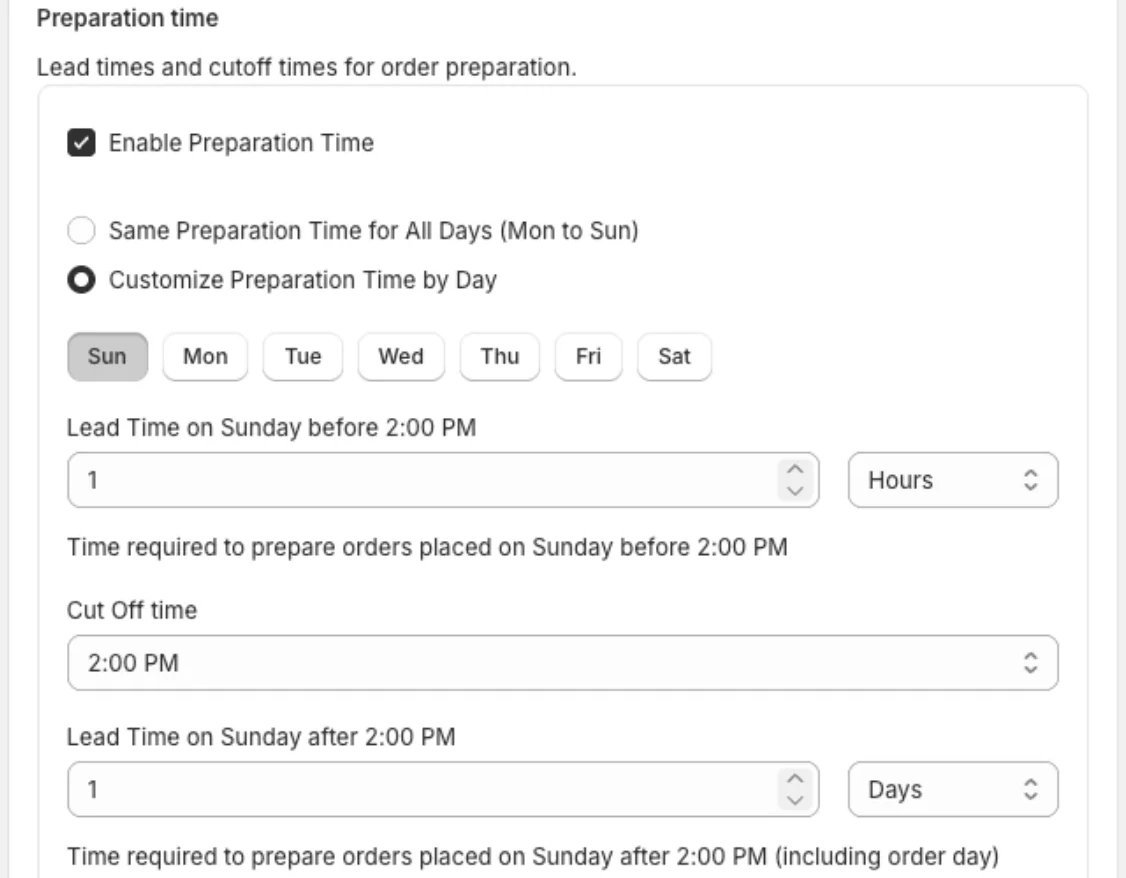
- Set your rules. In the Kite admin, set your prep time, cut-off time, and any blackout dates for the days you're closed.
If you’re hesitating over step 2, that’s fair. Nobody wants an app rummaging around in a theme that currently works. App embeds don’t work that way.
Shopify’s developer docs are blunt about it: apps built this way “don’t edit theme code, which decreases the risk of introducing breaking changes to the theme”. Uninstall later and the block is “automatically and entirely removed”. You can also switch the embed off in the theme editor and leave the app installed.
One real gotcha, though: embeds are per theme. If you change your published theme later, you’ll need to turn the embed back on, because it won’t come across on its own.
Everything above, on the free plan
You can put all of this in place without paying. Scheduling shouldn’t cost extra before you’ve proven you need it.
The free plan includes date and time slot selection, prep time, cut-off times, and blackout dates. It also supports pickup, local delivery, and shipping, along with calendar styling and multiple languages.
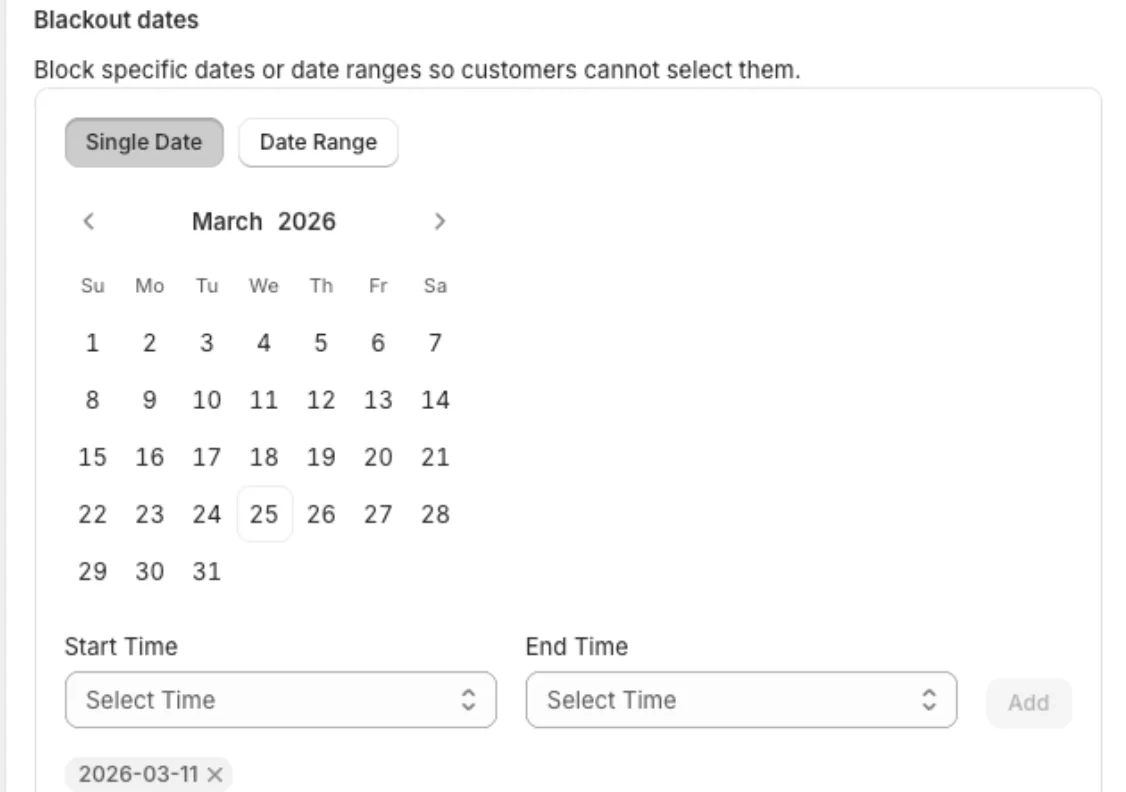
Closing for Christmas or another holiday? Here’s a full walkthrough of blocking holiday dates, including the mistakes that trip merchants up.
"I'm using the free plan, yet the features are incredibly generous and work exactly as I needed for my Shopify store."
The 30-order cap is the honest qualifier, not a catch. It lets a small store run real scheduling at no cost, and a store that outgrows it has already proven the feature is worth paying for.
Paid plans add more control as order volume grows:
Grow
$5.99/month
- ZIP code validation
- Day-wise availability and cut-offs
- Minimum order value validation
- Order tagging
Advanced
$9.99/month
- Order limits per slot and per day
- Product-specific prep time and blackout days
- Checkout customization (Shopify Plus)
Plus
$14.99/month
- Multi-condition delivery rates
- B2B draft order support
- Customer-initiated post-order date changes
Most merchants never need to go past Free. If you do, each paid plan comes with a 14-day free trial, so you can run a real weekend on it before you’re charged. The full plan breakdown has the rest.
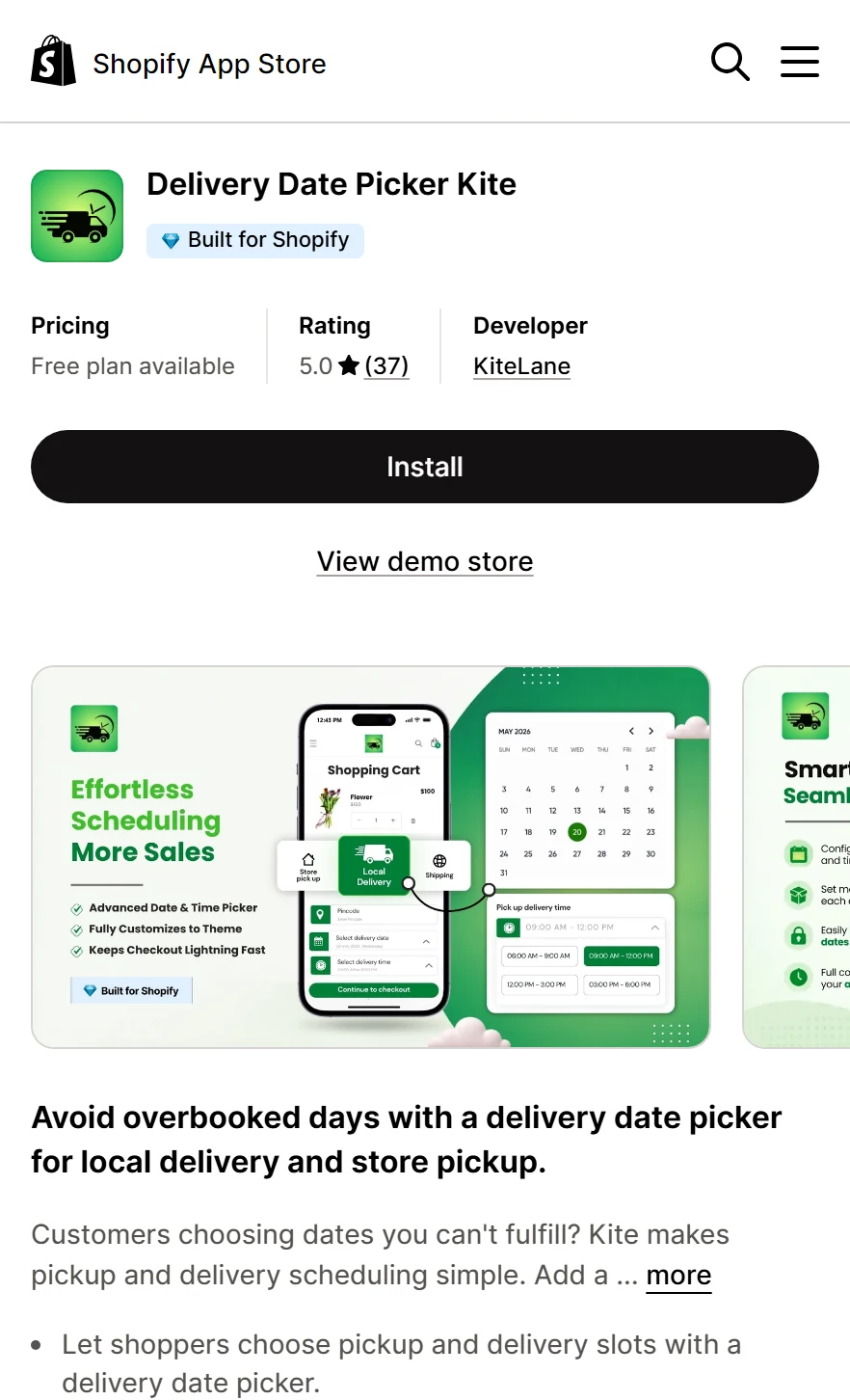
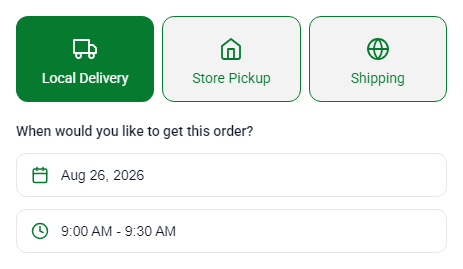
Here’s the fulfillment step a customer sees in the cart: local delivery, store pickup, or shipping, then the date and the time slot they want it in:
Shopping around? Here’s how Kite lines up against the two apps merchants ask about most.
| Kite | Zapiet | Bird | |
|---|---|---|---|
| Free plan | 30 orders/month | None | 10 orders/month |
| Paid plans start at | $5.99/month | $29.99/month | $19.99/month |
| Top standard tier | $14.99/month | $179.99/month | $99.99/month |
| Order limits per slot | From $9.99/month | From $79.99/month | From $49.99/month |
All three do date and time slots, so that isn’t the deciding factor. What differs is what you pay to get there, and how far the free tier carries you before it stops.
Want the detail? Kite vs Zapiet covers why Zapiet needs a second app to price by postcode, and Kite vs Bird covers Bird’s per-order overage charges. Looking for a Pickeasy alternative? Kite vs Pickeasy compares the free plans: 30 orders a month against 10. Comparing Flare Delivery Date Picker? Kite vs Flare sets its $39 entry plan against Kite’s free plan.
Choosing What Fits Your Business
Who actually needs this?
Businesses that sell the date itself, not just when it happens to arrive.
-
Grocery and butcher shops: you run delivery routes, and capping orders per window keeps one run from filling past what you can actually deliver. Set slots also cut down the back-and-forth with customers over collection times.
-
Florists: you're the clearest case of all. A bouquet delivered a day late has already failed at its job, so you need an exact date, not a delivery estimate.
-
Meal prep and catering: you work backward from a firm deadline. A delivery arrives chilled and on time, or not at all, which makes your cut-off and prep time settings load-bearing.
-
Bakeries: you feel the lead-time problem hardest. A custom cake needs real advance notice, and native Shopify gives you no way to enforce it.
If you run on any kind of deadline like this, set up scheduling before it becomes a support ticket. You can see which setup fits each type of business if you’re not sure where yours lands.
And if you’re still weighing it up: Kite undoes nothing you set up earlier. Your zones, your pricing, your locations all stay as they are, and Kite adds the date and time layer over the top. The free plan runs to 30 orders a month, so you can watch it handle a real weekend before deciding whether it’s worth paying for.
Frequently asked questions
Can customers choose an exact delivery date and time on Shopify?
Not with Shopify's native settings. You can define zones, pricing, and a rough processing time. There's no built-in date or time-slot picker. With Kite, you can add that layer, starting free.
Why isn't local delivery showing at checkout?
The most common cause is an accelerated checkout button. Apple Pay, Google Pay, Amazon Pay, and PayPal don't support local delivery. It can also mean the address falls outside every zone you've configured.
Can I limit how many orders I accept per delivery slot or day?
Not natively. Shopify has no order cap for delivery or pickup. You can set per-slot and per-day limits on Kite's Advanced plan, $9.99 a month.
Does Shopify support blackout dates for holidays?
No, not on its own. On Kite's free plan, you can block dates. A blocked date never appears as a choice.
Do I need Shopify Plus to offer local delivery or pickup?
No. Local delivery and pickup are on every Shopify plan. The only Plus-specific feature here is checkout customization, on Kite's Advanced plan. Shopify only allows checkout customization on Plus.
Is adding a delivery date and time picker free?
On Kite, yes, up to 30 orders a month. You get date and time slot selection, prep time, cut-off times, and blackout dates.
How many locations can I offer local delivery or pickup from?
As many as your Shopify plan allows: 2 on Starter, 10 each on Basic through Advanced, and 200 on Shopify Plus. You set up delivery or pickup separately for each location.
Can I set delivery areas by ZIP code instead of a radius?
Yes. A zone can use a radius, up to 100 miles, or a list of ZIP or postal codes. It's one or the other per zone, not both, and you get 10 zones per location.
Can I offer only local delivery or pickup, with no shipping option?
Yes. Don't add other shipping rates to that zone, and customers there will see only the fulfillment methods you've configured.
Ready to add exact delivery and pickup times?
Date and time slots, prep time, cut-offs, and blackout dates, all on the free plan.