
Blog
Shopify Holiday Pickup and Delivery: How to Plan Christmas Orders Without Overbooking
Picture the Saturday before Christmas. You can make 20 orders. Your Shopify store has sold 35.
Nobody did anything wrong. Shopify knows how much stock you have. It doesn’t know how many orders your team can get through on one day.
That’s the real holiday problem for local shops. It’s rarely a lack of orders. It’s selling more than you can make or pack. This guide shows you how to plan holiday pickup and delivery on Shopify, step by step, so your store only sells what you can actually fulfill.
Key takeaways
- Shopify stops selling when stock runs out, but it can't know how many orders you can handle per day or per time slot. It also can't close single days or ask for more notice on big items.
- Start with one number: how many orders you can handle per day. Every other setting comes from it.
- With Kite, customers only see dates and time slots you can actually fulfill. Closed days and full slots can't be picked.
This guide is for you if:
- You offer local pickup or delivery on Shopify, and your busiest weeks are in November and December
- You've had more orders for one day than your team could handle
- You close for some holidays and want customers to stop booking those days
- You'd rather set this up once now than fix it order by order in December
Why holiday orders go wrong on Shopify
Shopify can stop selling a product when its stock runs out. But stock isn’t the same as capacity. You might have ingredients for 200 cakes and only enough hands to finish 40 on Christmas Eve, and Shopify has no way to know that.
In a normal week, you can patch these gaps by hand. In December, you can’t. The fix is to make the decisions now, while it’s quiet, and let your checkout enforce them.
The 2026 holiday dates to plan around
Write these on your calendar first. Christmas falls on a Friday this year, so many shops lose a full weekend of trading right after it.
| Date | Day | What to plan for |
|---|---|---|
| Nov 26 | Thursday | Thanksgiving (US). Pies, sides and dinner orders pile up in the 2 to 3 days before. |
| Nov 27 to 30 | Friday to Monday | Black Friday to Cyber Monday. Online orders jump while your shop floor is busy too. Saturday is Small Business Saturday (US), so keep room for counter customers. |
| Dec 4 | Friday | Hanukkah begins at sundown. It runs until Dec 12. |
| Dec 24 to 25 | Thursday to Friday | Christmas Eve and Christmas Day. Christmas Eve is usually the busiest pickup day of the year, and many shops close early. Most local shops are closed on Christmas Day. |
| Dec 26 | Saturday | Boxing Day (UK, Canada, Australia, NZ). In the UK the bank holiday moves to Monday, Dec 28. |
| Dec 31 | Thursday | New Year’s Eve. Party food and flower orders, often with an early close. |
| Jan 1 | Friday | New Year’s Day. Most shops are closed. |
Selling outside the US? Swap in your local dates. The planning steps below stay the same.
Step 1: Work out how many orders you can really handle
Before you touch any settings, answer four questions with your team:
- How many orders can you make or pack in a day? Count your busiest normal day, then be honest about how much faster you can go.
- How many pickups can your counter hand over per hour? Think about the queue, not just the shelf.
- How many deliveries can go out in a day? Whether it's your team or a courier, holiday traffic means fewer of them.
- Who is actually working? Holidays mean time off. Check the staff schedule before you set any number.
Your real limit is the smallest answer, not the biggest. If your kitchen can bake 100 orders but only 30 deliveries can go out, your delivery limit is 30.
Your number may feel low. That’s fine. A full calendar of orders you deliver well beats a bigger one you can’t.
Step 2: Close the days you won’t fulfill
If you’re closed, customers shouldn’t be able to book that day. It sounds obvious, but Shopify can’t close a single date. Its only option is to pause the whole store.
With Kite, you can add blackout dates. Pick one day, or a range like December 24 to January 1. Those days turn grey on the date picker and can’t be chosen.
Days most shops block:
- Thanksgiving Day, Christmas Day and New Year’s Day
- Boxing Day, if you close for it
- Any day you’re short on staff or waiting on a supplier
Need to close a date for just one product, like no fresh cakes on December 26? You can block days for a single product too. For a full walkthrough with screenshots, see how to block holiday dates in Shopify.
Step 3: Cap orders per day and per time slot
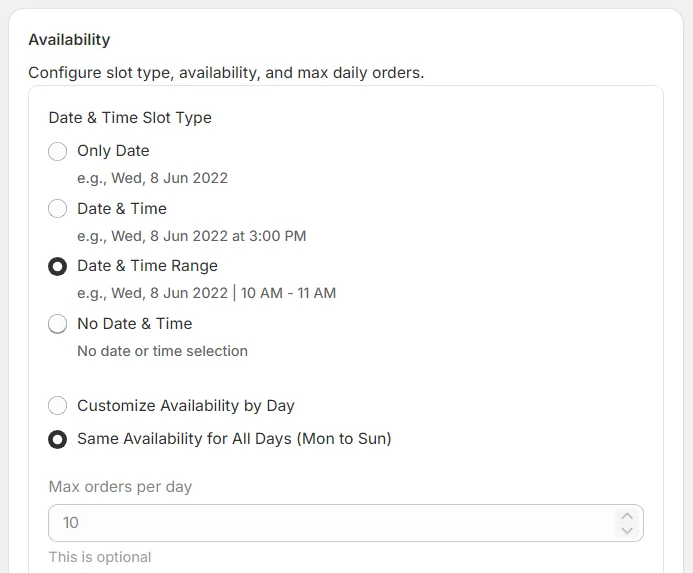
This is the step that stops overbooking. Take your number from Step 1 and set it as a limit.
With Kite, you can set a cap per day, per time slot, or both. When a slot fills up, it disappears from the date picker. The customer just picks another time, and you never take an order past your limit.
Step 4: Give big items enough lead time
A loaf of bread can be ready tomorrow. A whole turkey or a large gift hamper can’t.
Prep time tells the date picker how much notice you need. Customers can’t pick a date inside your prep time. Start with one prep time for the whole store.
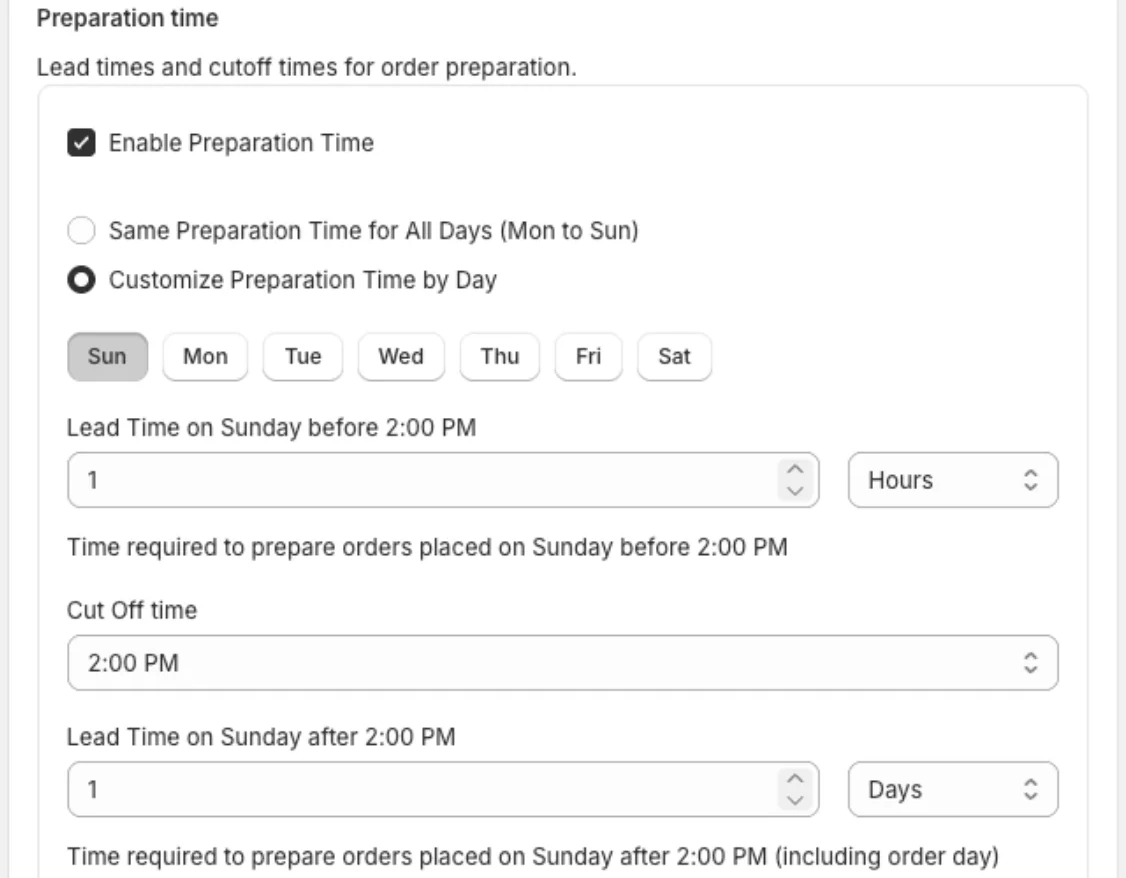
For holiday menus, one store-wide setting is often not enough. That’s where product-specific prep time helps. For example:
- Everyday items: 1 day
- Pies and party trays: 2 days
- Whole turkeys, custom cakes, large hampers: 3 days or more
Then add a day of buffer for the rush. You’ll need it. For the full setup, see our guide to Shopify preparation time.
Step 5: Set cut-off times and last order dates
A cut-off time is the time of day you stop starting new orders. Orders placed after it use a separate lead time that you set. You can also set a different cut-off for each day of the week, so Saturday can close earlier than Tuesday.
For the holidays, also pick a last order date for each big day. For example:
- Last Thanksgiving pie order: Sunday, November 22
- Last Christmas order for delivery: Sunday, December 20
- Last Christmas order for pickup: Monday, December 21
Once each last order date passes, close the remaining days with a blackout date. That way the date picker matches your last order dates.
Step 6: Make holiday delivery pay for itself
Delivery costs more in December. Traffic is slower, couriers are busier, and each delivery takes longer. If your delivery price doesn’t change, your margin does.
Kite gives you a few ways to cover it:
-
Rates by order price or weight: charge more for heavy orders, or offer free delivery only above a set order value.
-
Minimum order value: stop small orders that cost more to deliver than they earn.
-
Rates by product, urgency and time: charge more for a rush order or a popular time slot.
Also, make pickup easy to choose. Shopify always shows pickup as free, so it’s already the cheapest option. Mention it in your holiday emails. Every customer who picks up is one less delivery to fit into a busy day.
Step 7: Keep the busy days calm
On the day itself, your team needs one clear list, and customers need to know when to come.
- Kite saves the chosen date and time on the Shopify order. Your team sees it right in the order, so there’s no guessing.
- Order tags and the date on packing slips let you filter and print a day’s orders in one go.
- Google Calendar sync puts every pickup and delivery on one shared schedule.
For customer messages, use Shopify’s own emails. When you click Mark as ready for pickup, Shopify sends the ready email with your pickup instructions. For local delivery, the confirmation email only goes out when you mark the order as delivered, so don’t skip that click.
Stuck on any of these settings before the rush? Support will walk you through it. Here’s a merchant who got exactly that:
"Sidharth was super helpful in setting up. He personally got on a call with me to walk through set up from start to finish. He made the whole process so easy and stress free."
Holiday mistakes to avoid
1 Copying last year's dates
Christmas was on a Thursday in 2025. In 2026 it's a Friday, and Boxing Day falls on a Saturday. Last year's closures and cut-offs won't line up.
How to fix: rebuild your closed days and last order dates from this year's calendar, using the table above.
2 Closing a day but forgetting orders already booked
A blackout date only stops new bookings. If customers had already picked that day before you closed it, those orders are still there.
How to fix: after you close a date, search your orders for it and contact anyone already booked.
3 Changing settings in the middle of the rush
Black Friday weekend is the worst time to rethink your limits. A quick change at 9am can open slots you can't fill, or close ones customers are trying to book.
How to fix: lock in your settings before November 26. Only change them during the rush if something is clearly broken.
4 Never placing a test order
A setting that looks right in the admin can still surprise you at checkout. A cut-off set for the wrong day, or a date you thought was blocked but isn't, is easy to miss.
How to fix: place one test order for pickup and one for delivery. Try one just before your cut-off and one just after.
Your holiday countdown
Starting today, here’s a simple plan you can follow:
- By November 8: agree on your daily numbers, close your holiday dates and set order limits.
- By November 13: set prep time for holiday items and open Thanksgiving pre-orders.
- By November 15: set your last order dates and check your delivery prices.
- By November 20: place test orders and check every customer email.
- November 22: last day for Thanksgiving orders.
- November 26 to 30: leave your settings alone and focus on fulfilling orders.
- December 1: open Christmas pre-orders and lower your Christmas Eve limit.
- December 20 to 21: last Christmas orders, then close the remaining days.
Move any date that doesn’t fit your shop, your suppliers or your country.
The short version
Holiday stress for a local shop mostly comes from one thing: selling more than you can deliver. You fix it in November, not on December 24.
Before the rush, agree on four things with your team: the days you’re closed, how many orders fit in each day and slot, how much notice your big items need, and the last day to order. Put those into your store, and your checkout will say no for you.
Still choosing an app for the season? See the best Shopify local delivery and pickup apps.
Frequently asked questions
When should I set up holiday pickup and delivery on Shopify?
As early as you can, and before your first holiday pre-order comes in. Settings only control new orders, so every order taken before you set a limit or close a day still has to be fulfilled.
Can Shopify limit how many delivery or pickup orders I take in a day?
Only by inventory. Shopify stops selling a product when its stock runs out, but it can't know how many orders you can handle per day or per time slot. With Kite, you can cap orders per day and per time slot, and a full slot disappears from the date picker.
What happens when a time slot is full?
With order limits on, a full slot disappears from the date picker. The customer picks another open slot or another day, so nothing gets booked past your limit.
Does closing a date cancel orders already placed for that day?
No. A blackout date stops new customers from picking that day. Orders placed before you added it stay in place, so check your existing orders for that date by hand.
How much notice should I give for big holiday items?
Start with the time it really takes you, then add a day for the rush. With Kite, you can set one prep time for the whole store, and a longer one for items like whole turkeys or large hampers.
Can I close Christmas Day without closing my whole store?
Not with Shopify alone. Its only option is pausing the whole store. With Kite, you can block a single date or a range like December 24 to 26, and the rest of your calendar stays open.
Ready to add exact delivery and pickup times?
Date and time slots, prep time, cut-offs, and blackout dates, all on the free plan.