
Blog
Shopify Preparation Time: Set Lead Times and Cutoffs for Local Delivery and Pickup
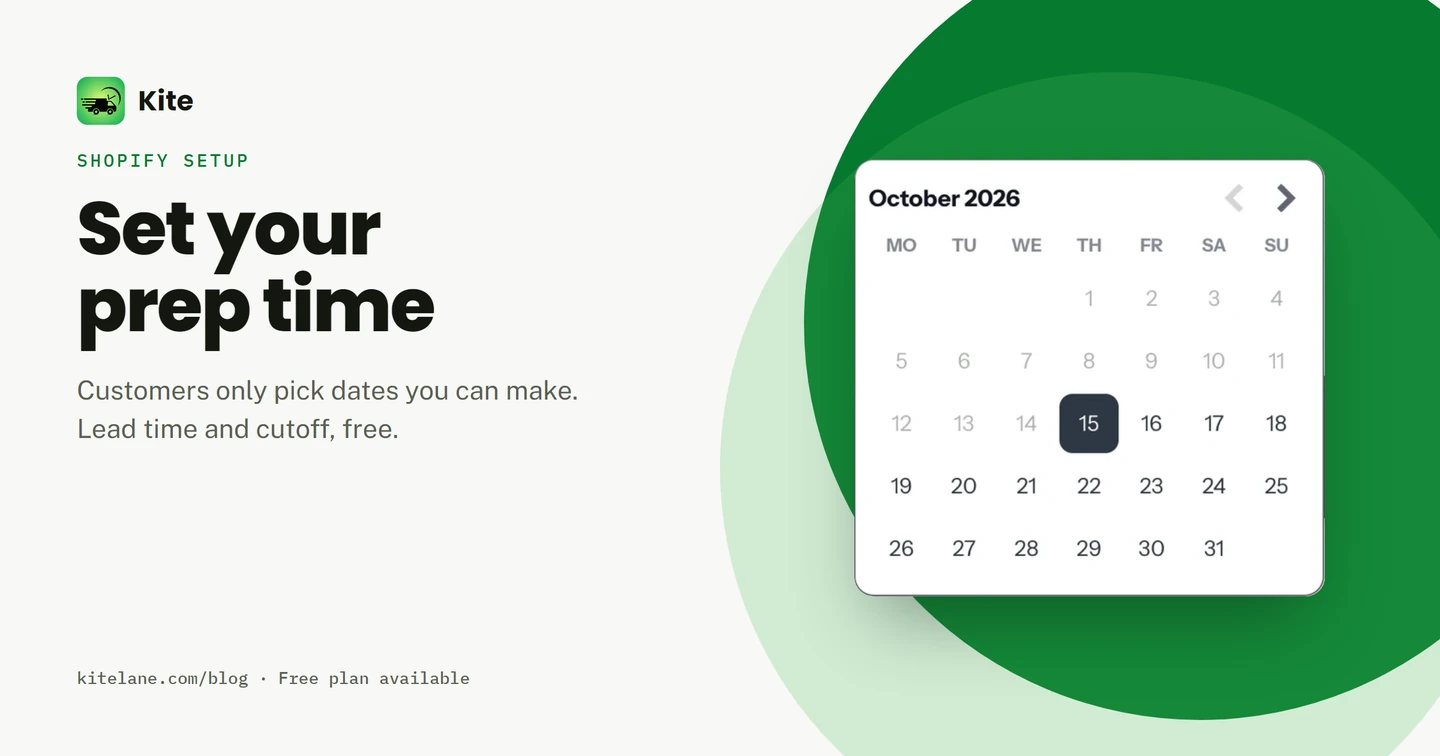
Shopify preparation time for local delivery and pickup is mostly an estimate you show your customer. Pickup gets a fixed “usually ready in” label. Local delivery gets nothing, and neither one lets your customer choose a date.
A date picker with a real prep time and cutoff, like Kite, fixes that. Your customers only see dates you can make.
Your custom cake needs three days. Someone books it for tomorrow morning, and you find out when the order lands. Sound familiar?
Key takeaways
- Shopify's pickup setting is a ready-time estimate, not a rule. Its local delivery settings have no prep time at all.
- In Kite you set three fields: your lead time, a daily cutoff, and a separate lead time for orders after the cutoff. Dates inside your prep window grey out in your cart.
- Prep time and cutoffs are on Kite's free plan, up to 30 orders a month.
You’ll want this if:
- You make to order, and some orders need days of lead time, not hours
- Your customers keep picking tomorrow when you need longer
- Late-night orders land on days you'd already filled
Four timing settings that get mixed up
Before you touch a setting, get these four straight. They’re easy to mix up.
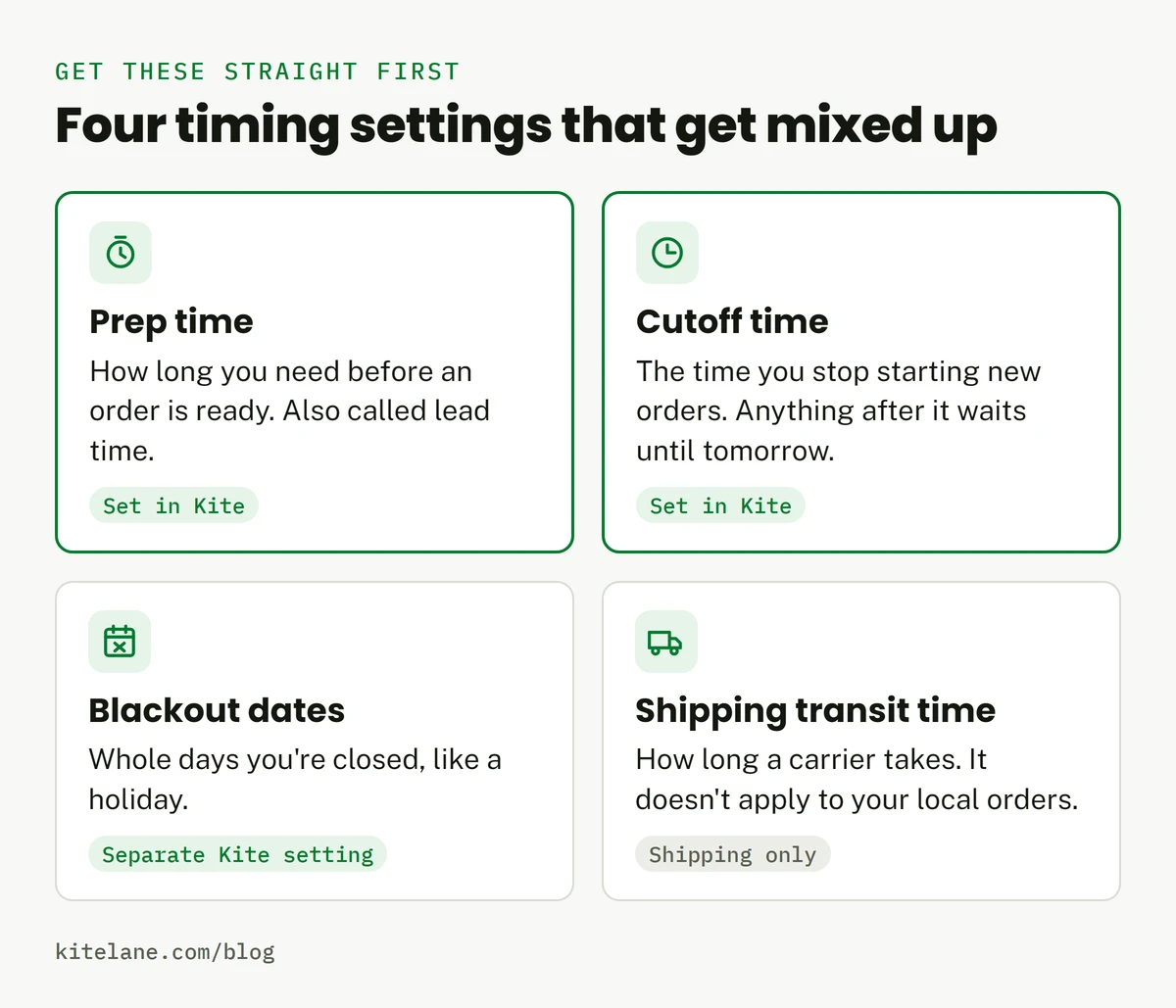
- Prep time (lead time): how long you need before an order is ready. Kite’s fields call it Lead Time.
- Cutoff time: the time of day you stop starting new orders. Anything after it waits until tomorrow.
- Blackout dates: whole days you’re closed. You’ll find those in how to block holiday dates.
- Shipping transit time: how long a carrier takes. That’s a shipping setting, so it won’t help your local orders.
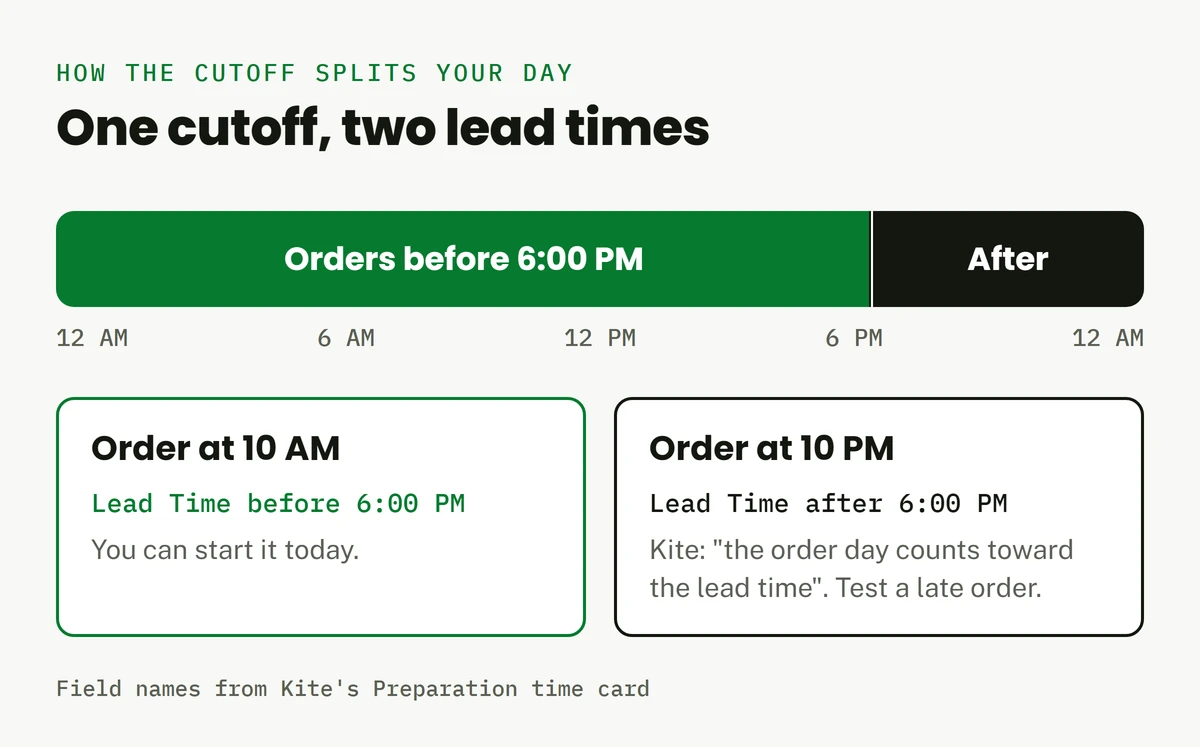
Here’s why the cutoff matters. An 8 AM order and an 11 PM order might both need three days, but you can only start one of them today.
What Shopify gives you natively
Short answer: Shopify doesn’t let your customer pick a date in standard checkout, for pickup, local delivery or shipping. Here’s what you do get.
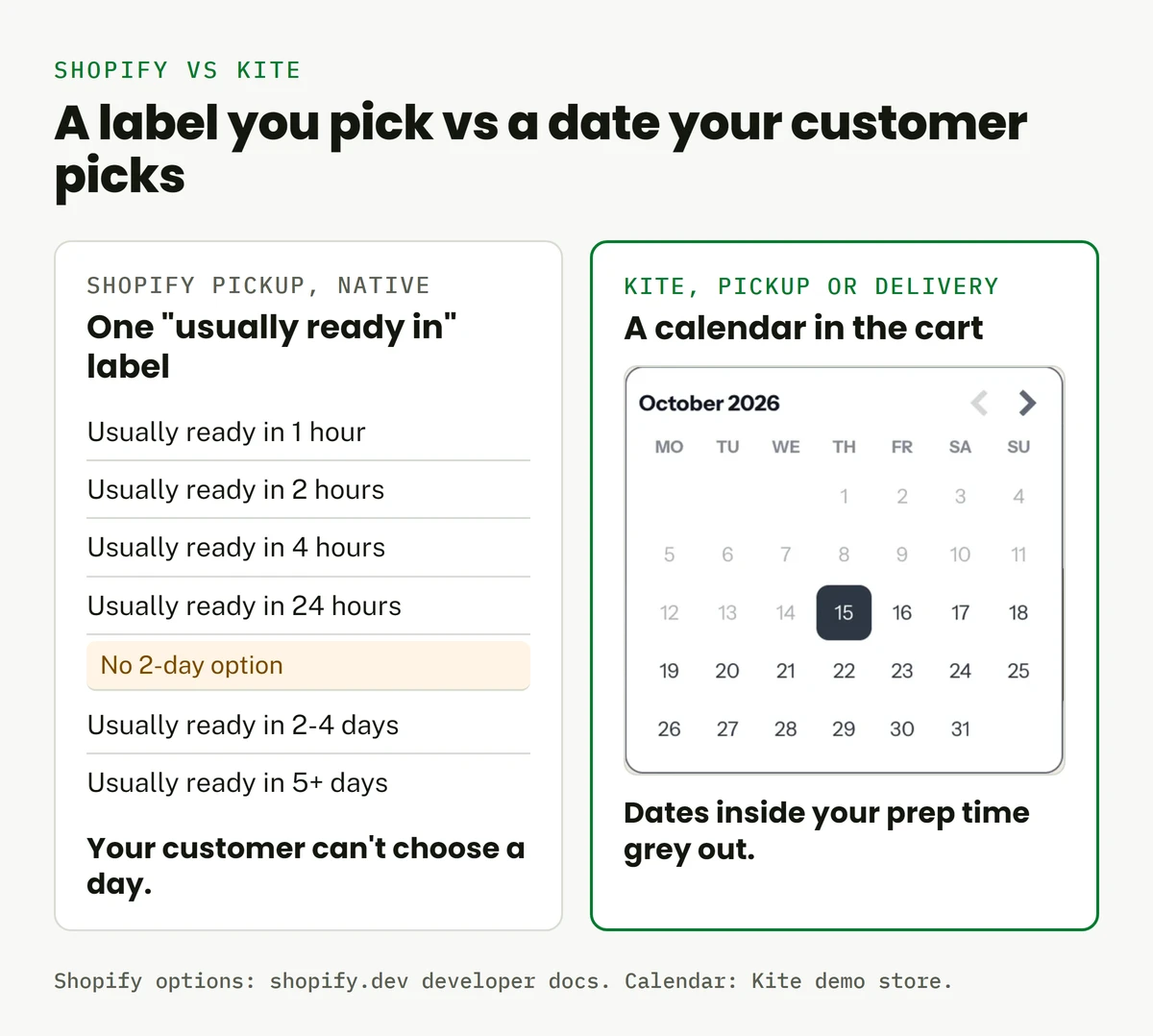
Store pickup: a fixed “usually ready in” estimate
Go to Settings → Shipping and delivery → Pickup in store. Shopify’s help page tells you to select a processing time for in-store pickup from the drop-down menu, and your customer sees that time at checkout.
You can’t type your own. Shopify’s developer docs list the options:
- Usually ready in 1 hour
- Usually ready in 2 hours
- Usually ready in 4 hours
- Usually ready in 24 hours
- Usually ready in 2-4 days
- Usually ready in 5+ days
See the gap? Nothing sits between 24 hours and 2-4 days. If your orders need two days, no preset fits.
Local delivery: zones and a message
Go to Settings → Shipping and delivery → Local delivery. You set your delivery zones by postal code or radius.
Shopify’s local delivery help page gives you a Delivery information field for “delivery timeframes or special instructions”. Your customer reads that text in the order confirmation email. The page describes no prep time setting and no delivery date.
Shipping: a 12 pm cutoff for estimated dates
Shipping has its own cutoff, but it’s built for shipping. With manual delivery dates, Shopify says “the business day cutoff time is 12 pm in the local timezone of the shipping origin”, and your customer sees an estimated date range at checkout. The manual delivery dates page doesn’t mention local delivery or pickup.
Where native stops
What about a date picker? Shopify’s help center does have a delivery date picker for your cart. You add it with code, it only works on a cart page (not a drawer or pop-up cart), and it doesn’t work on vintage themes.
Its sample code blocks today and weekends. Want a different lead time, or a cutoff? You’ll be editing that code yourself.
When native is enough: you only offer pickup, a “usually ready in” label matches how you work, and your customers don’t need to choose a day.
When it isn’t: your customers need to pick a date, or your lead time doesn’t fit a preset.
Before you start
You need three things in place first. Skip the embed and your customers won’t see a calendar at all.
- Install Kite on your Shopify store.
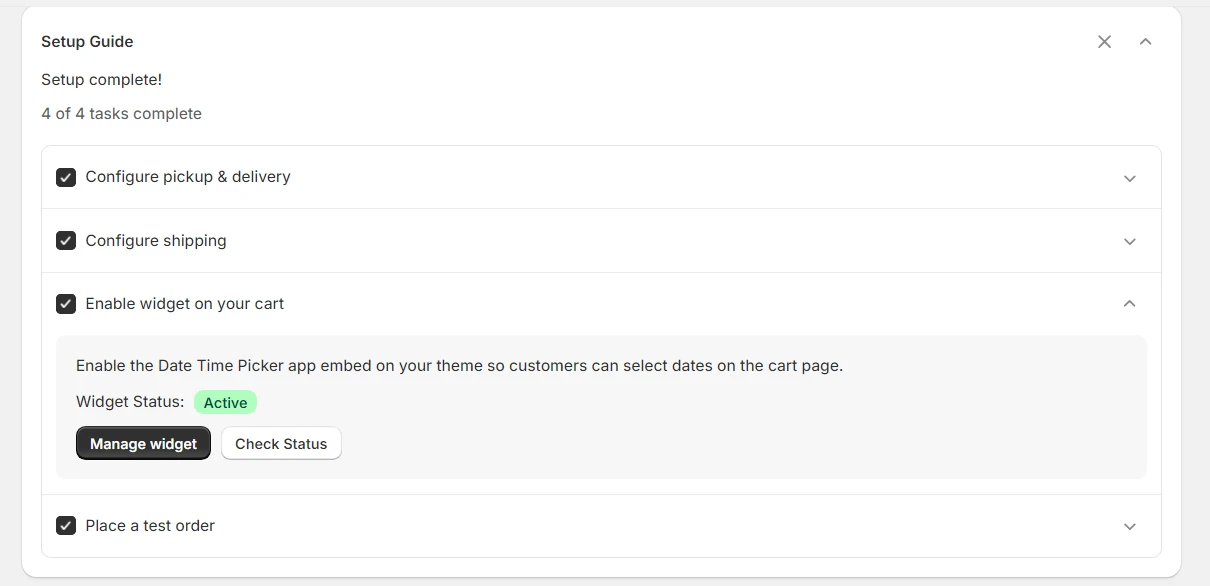
- Turn on the Date Time Picker app embed. In Kite’s Setup Guide, under Enable widget on your cart, click Manage widget and turn on Date Time Picker in your theme.
- Finish the Setup Guide’s Configure pickup & delivery step, so Kite knows which methods you offer.
Once that’s done, your customers choose how they get their order right in the cart:
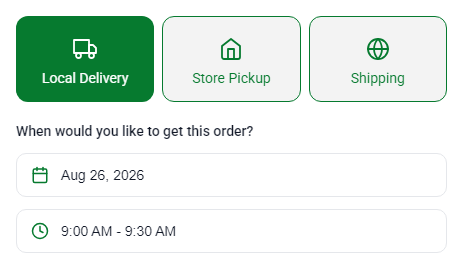
How to set Shopify preparation time and a cutoff in Kite
Ready? These steps set one prep time for your whole store, for local delivery. Pickup gets its own card, and you’ll set that next.
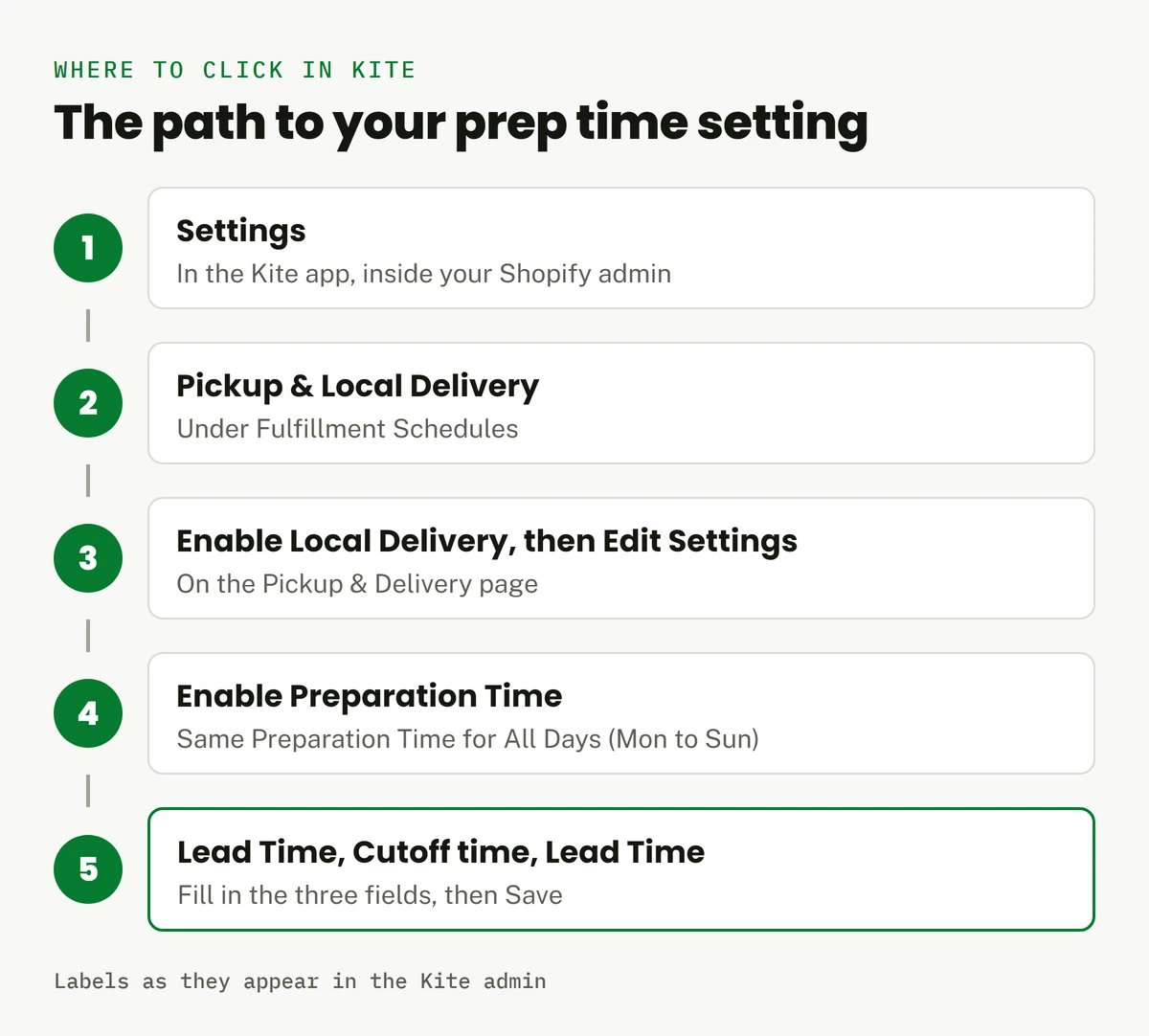
- Go to Settings in Kite. Under Fulfillment Schedules, click Pickup & Local Delivery. You'll land on the Pickup & Delivery page.
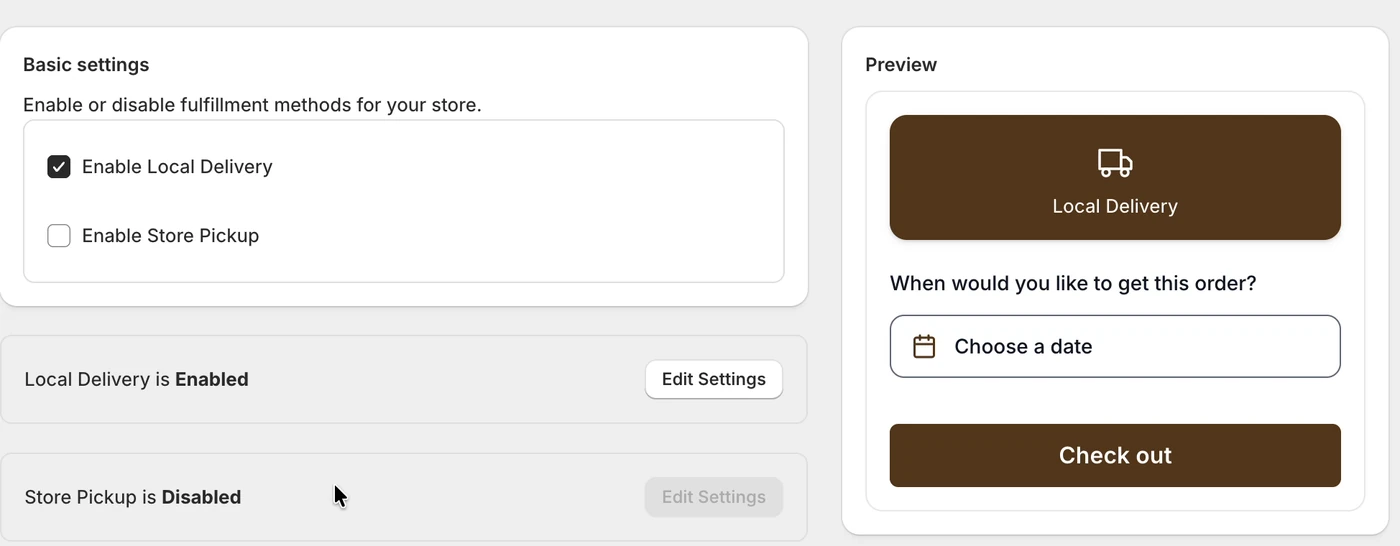
- Tick Enable Local Delivery, then click Edit Settings next to Local Delivery is Enabled.
- Scroll down to Preparation time and tick Enable Preparation Time.
- Choose Same Preparation Time for All Days (Mon to Sun).
- Fill in the three fields: your lead time before the cutoff, your Cutoff time, and your lead time after it. For each lead time, pick days, hours or minutes.
- Click Save.
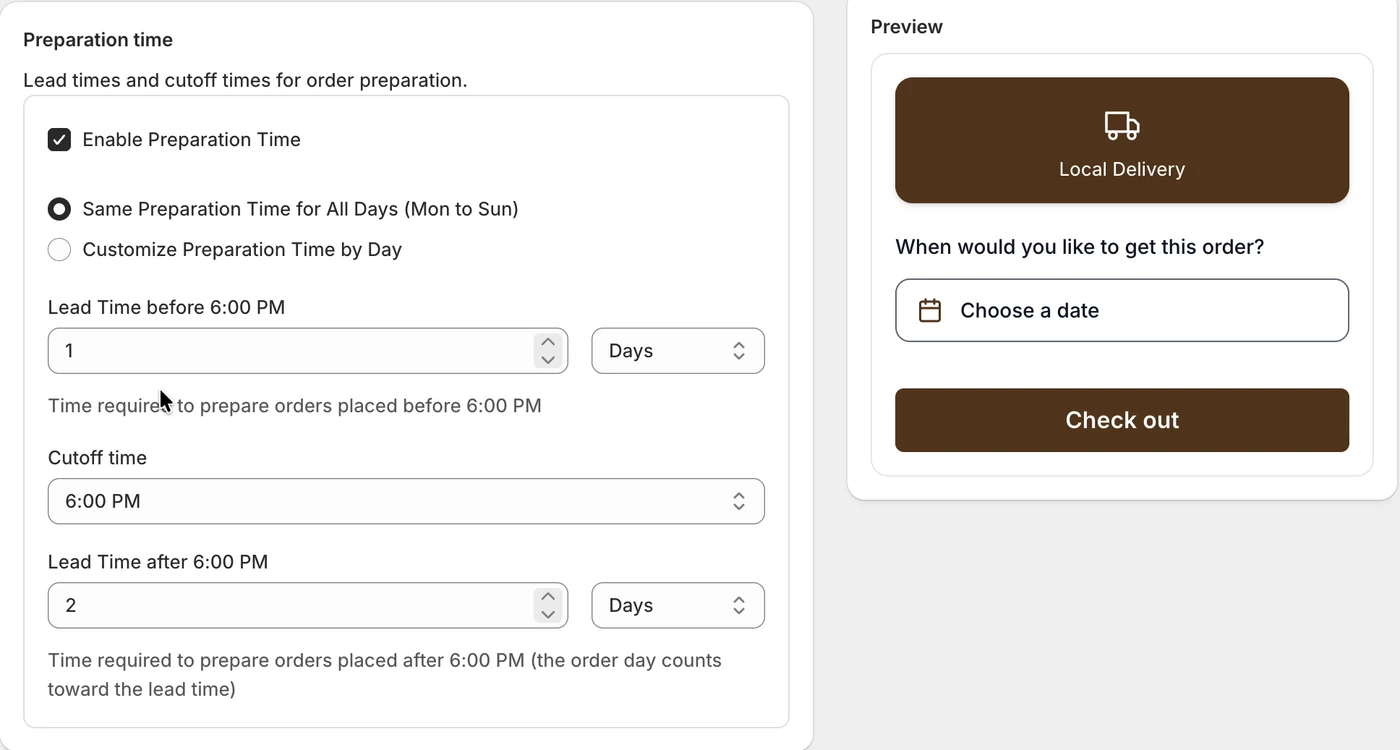
Notice the field names? They follow your cutoff. Set 6:00 PM and you get Lead Time before 6:00 PM and Lead Time after 6:00 PM.
A new card starts you at 1 day, a 2:00 PM cutoff and 2 days. One thing to watch: the help text under the after field says “the order day counts toward the lead time”, so test a late order before you trust that number.
Store pickup has its own preparation time
Offer pickup too? On the same page, tick Enable Store Pickup, click its Edit Settings, and fill in the same three fields on its own Preparation time card. Then click Save.
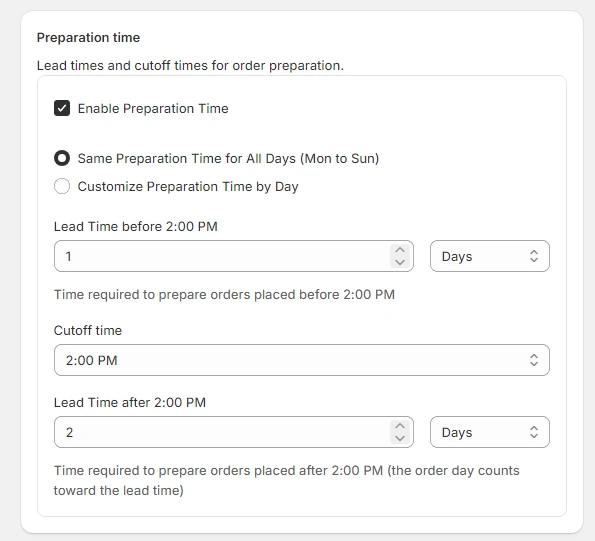
Worked example: one day, 6 PM cutoff
Here’s what that looks like on our demo store. It stops starting new orders at 6 PM and needs a day for each one.
An order you get during the day needs one day.
Closing time. After this, you can't start a new order until tomorrow.
For orders that come in after closing. The order day counts toward it.
Store-wide prep time is on the free plan.
The result? On Wednesday the 14th, the cart offered Thursday the 15th as the earliest date. The 12th to the 14th were greyed out.
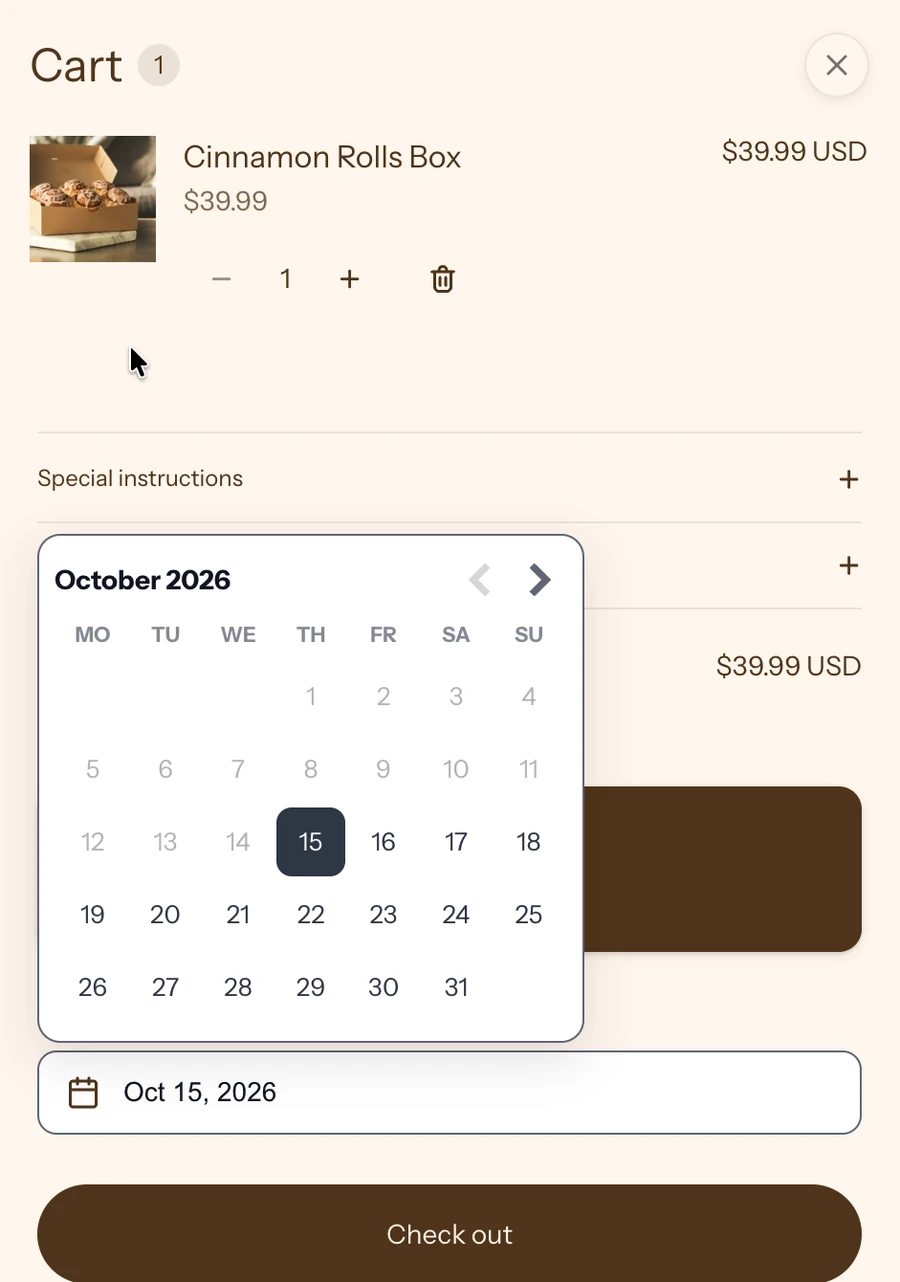
Once your customer picks a date, it sits in the cart, ready for checkout:
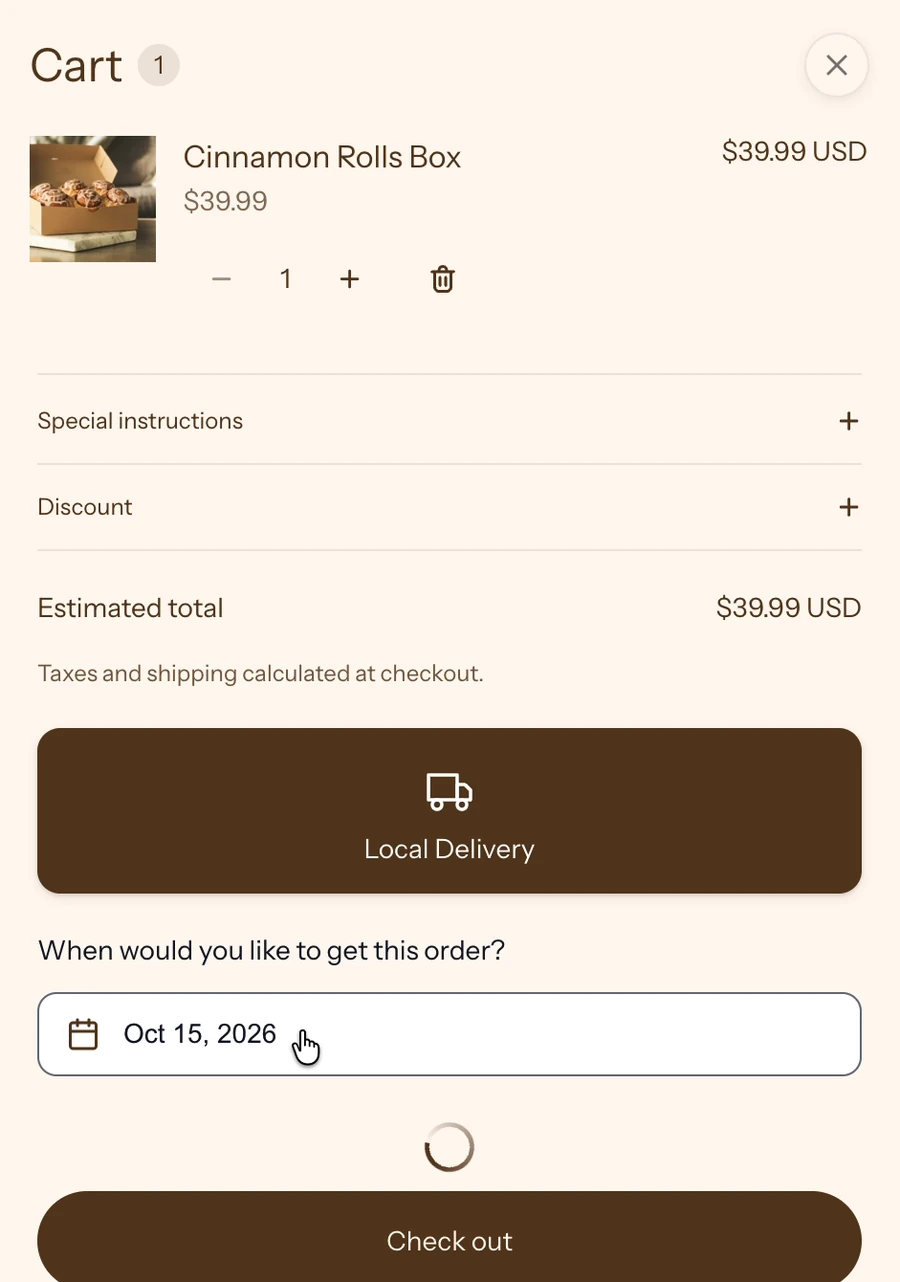
Need three days instead? Put 3 in the before field, set the after field, and run the go-live test orders at the end.
Who needs more than Shopify’s preset
-
Grocers and butchers: you cut and pack to order, so a morning order and a midnight order shouldn't land on the same delivery run.
-
Florists: the date is the product. If you can't fill a date, your customer misses the occasion.
-
Meal prep and catering: you shop and cook on a schedule, so you need a firm order deadline.
-
Bakeries: your custom cakes take days, and "usually ready in 24 hours" promises your customer the wrong thing.
Need different prep times for different products? One store-wide prep time holds your fast items back. Kite’s Advanced plan, $9.99 a month with a 14-day free trial, lets you set prep time per product instead.
Here’s what happens with a mixed cart. On our demo store, a cart with a 3-day product and a 1-day product offered the 3-day product’s earliest date.
Not sure where you fit? See which setup fits your business.
Common mistakes with preparation time
1 Guessing how the after-cutoff number counts
Kite counts the order day toward your after-cutoff lead time, so a late order's first date might surprise you.
How to fixPlace a test order after your cutoff. Then adjust the after number until the first date matches when you can really have the order ready.
2 Setting delivery and forgetting pickup Pickup
Store Pickup has its own Preparation time card, separate from Local Delivery's. It's easy to miss.
How to fixEnable Store Pickup, open its Edit Settings, and fill in the same three fields.
3 Saving the setting with the cart widget off
If the app embed is off, your customers get no calendar in the cart, so your prep time does nothing.
How to fixIn Kite's Setup Guide, click Check Status under Enable widget on your cart. Not Active? Click Manage widget and turn on Date Time Picker.
4 Treating Shopify's pickup estimate as a rule
"Usually ready in 24 hours" is just a label at checkout. It can't stop your customer turning up before the order is done.
How to fixPick the native preset that's honest for your slowest week, or use a date picker that only offers dates you can make.
Before you go live
Run these four checks before your customers see it:
- Place a test order before your cutoff and note the first date you can pick
- Place another after your cutoff and check the first date matches when you can really have it ready
- Do both again for store pickup, if you offer it
- Check that your blackout dates still look right on the same calendar
Setting up delivery and pickup from scratch? The local delivery and pickup setup guide walks you through zones and slots.
Still comparing apps? The best Shopify local delivery and pickup apps lines them up for you.
Frequently asked questions
Does Shopify let my customers pick a pickup or delivery date?
Not in its standard pickup or local delivery settings. Pickup shows your customer a fixed ready-time estimate, and local delivery shows nothing. You can add a date field to your cart page with a code customization from Shopify's help center, and Shopify's developer docs show a checkout date picker that needs Shopify Plus. Or you can use an app like Kite, which adds a date picker to your cart without code.
What's the difference between prep time and a cutoff time?
Prep time is how long you need before an order is ready. Your cutoff time is when you stop starting new orders for the day. In Kite you set both, plus a separate lead time for orders that come in after your cutoff.
Does Kite add an extra day for orders after my cutoff?
Only what you set. The lead time after your cutoff is its own field, and Kite's help text says the order day counts toward it. Place a test order after your cutoff to see which first date your numbers give.
Does store pickup use the same prep time as local delivery?
No. Store Pickup has its own Preparation time card with the same three fields. If you offer both, fill in both.
Can I set a different prep time for each product?
Yes, on Kite's Advanced plan, $9.99 a month with a 14-day free trial. On the free plan, your prep time applies store-wide, per delivery method.
Is prep time on Kite's free plan?
Yes. Prep time and order cutoffs are on the free plan, up to 30 orders a month.
Ready to add exact delivery and pickup times?
Date and time slots, prep time, cut-offs, and blackout dates, all on the free plan.